

Contents
More and more customers pick a locker or a pickup point at checkout instead of delivery to their door. For you that means a different courier service, a different field on the label and one more rule: if a locker parcel goes to the home address, the customer never finds it.
This guide shows how the chosen point gets from the store onto the order, how the app picks the right service, which automation to use and what to do when the point is missing or no longer valid.
How the point reaches the order
The app reads what the customer asked for from the order and shows it under Delivery: To the address, To a pickup point, Store pickup or Different deliveries.
- WooCommerce: the known delivery plugins send the point on the order themselves: Sameday, woot, FAN Courier, Cargus, DPD, Colete Online and EuroParcel. WooCommerce's own Local Pickup (store pickup) is recognized too.
- Shopify: if the store marks the delivery as a pickup point, the order is treated as delivery to a point, but usually without the point's identifier. See below what to do then.
- A method of your own in the store, such as a flat rate named "Locker delivery", says nothing by itself. You explain it once: in My applications, open Settings on the store's card, the Delivery section, and for each method pick the Delivery type: To the door, To a locker or Store pickup. For a locker method you check Couriers on the map, the networks whose points the customer may pick. The methods of known plugins show as Recognized automatically.
The point never replaces the customer's address. Both stay on the order.
Which courier and which service
The app chooses only among services that can really deliver to the requested point:
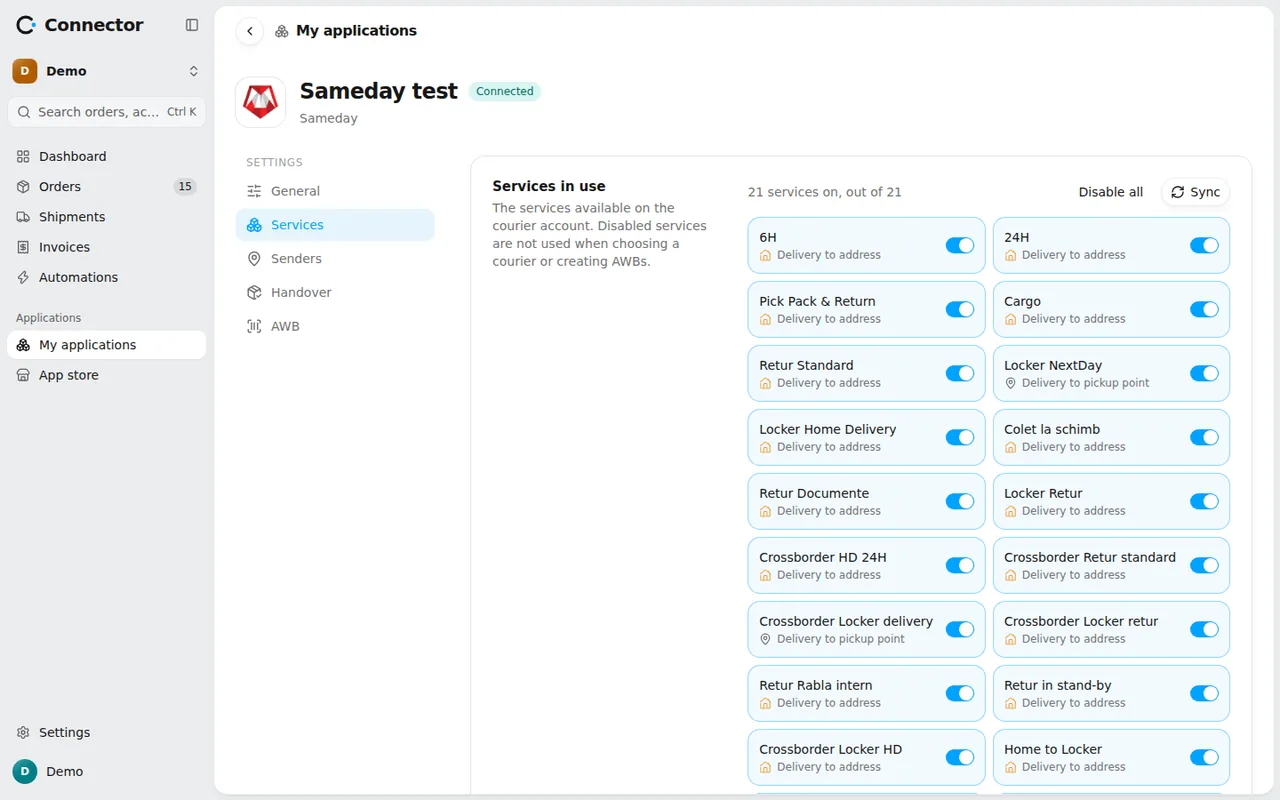
- A point is requested only through the account that knows it: a Sameday locker through the Sameday account, a point from the woot list through woot. The other accounts are not asked for a price.
- For a point, only that network's pickup point services are considered. A delivery to the door cannot be chosen for a locker, not even by a delivery rule.
- For Store pickup no courier is needed, and the order gets no label.
Among those services, Settings → Shipping → Delivery rules chooses as for any order: cheapest, priority, one service or manual. The guide on delivery rules explains each option.
To deliver to lockers you need at least one connected courier that has them. If you have none, the store's Delivery section shows "No courier with lockers" and a Connect a courier button.
The automation for pickup points
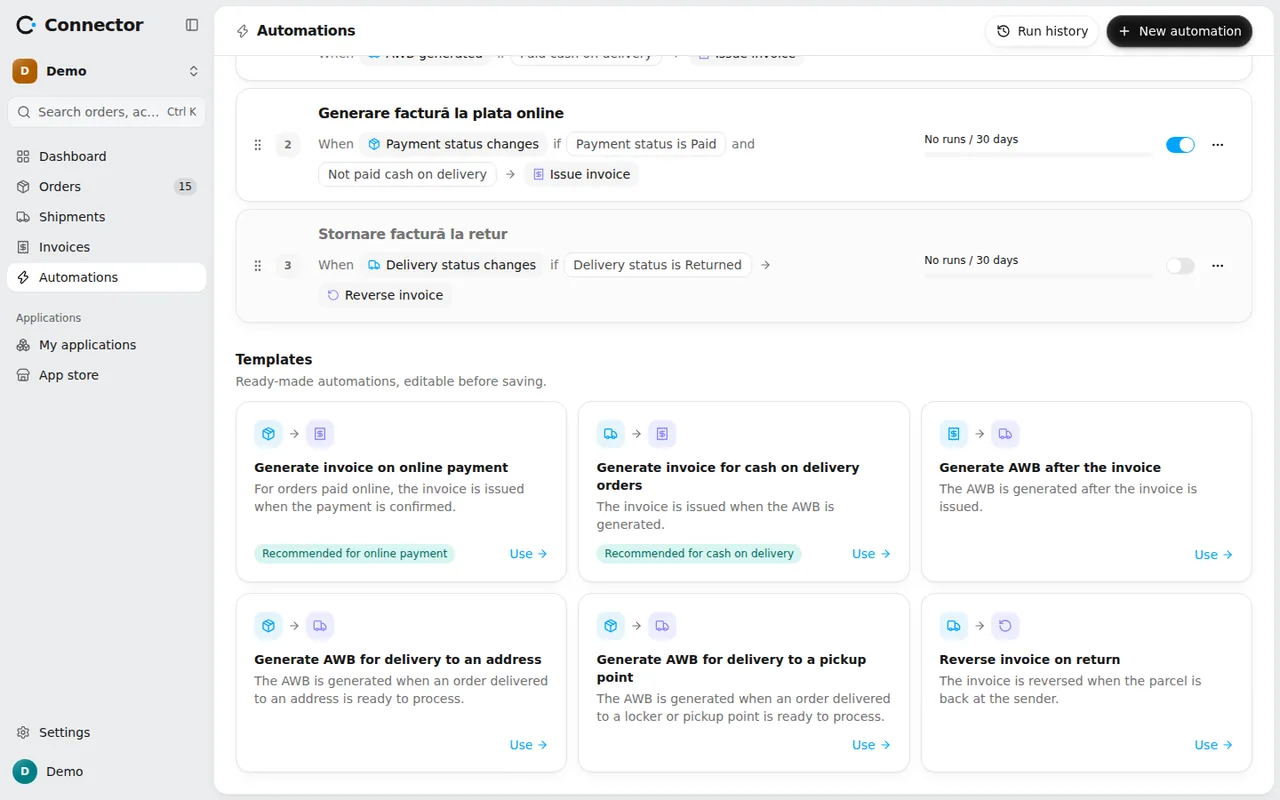
In Automations, in the Templates section, press Use on Generate AWB for delivery to a pickup point. It starts on the Order ready to process event, when the Delivery type is To a pickup point, and runs the Generate AWB action. For door deliveries you use Generate AWB for delivery to an address separately; the two do not overlap.
When the point is missing or not valid
Before the label, the app checks the point. If something is wrong, the order gets a problem and the label does not go out. The most common ones:
- "The order is for delivery to a pickup point, but the point is not specified." It happens when express checkout skips the point picker, a plugin loses the point or the order was made by hand.
- "The pickup point ... cannot be identified."
- The point no longer takes parcels, or is no longer in the courier's list.
- The point does not collect cash on delivery, and the order is cash on delivery.
- The parcel is over the weight or the size the point accepts.
- A warning, not a block: the point was full when last checked, or the courier needs the customer's email for the pickup code.
Blocking problems get fixed, and when they disappear the automation starts on its own.
How to fix it
Open the order and press Change the delivery. You have two options:
- Delivery to the address: the parcel goes to the customer's address.
- Delivery to a pickup point: you pick a point on the map with Choose this point, among the lockers, offices and partner points of your connected couriers. The map can be filtered by courier, type and payment, and it shows only the points that can take this parcel.
If you want to ask the customer which point they prefer, the dialog shows the Buyer contact details: email and phone.
The change is kept when the store syncs, and Back to what the buyer asked undoes it. It can no longer be changed once the label has been requested.
If no connected account can reach the chosen point (for example a point of a courier you have not connected), the order stays blocked until you connect that courier or send the parcel to the address.
Check that it works
Place a test order with delivery to a locker. On the order's page you see the delivery type, the point and the chosen service, marked "Chosen by the rule ..." or "Chosen by default: the cheapest". The automation run shows in Automations → Run history.