



Contents
With one courier you pick the service once and you are done. With two or three, every order raises the same question: the heavy parcel to one, cash on delivery to another, Bucharest to a third? If the answer lives in someone's head, every label depends on who is on shift.
Delivery rules write the answer down once. The app picks the service for each order from your conditions, and you step in only for exceptions.
Where to find them
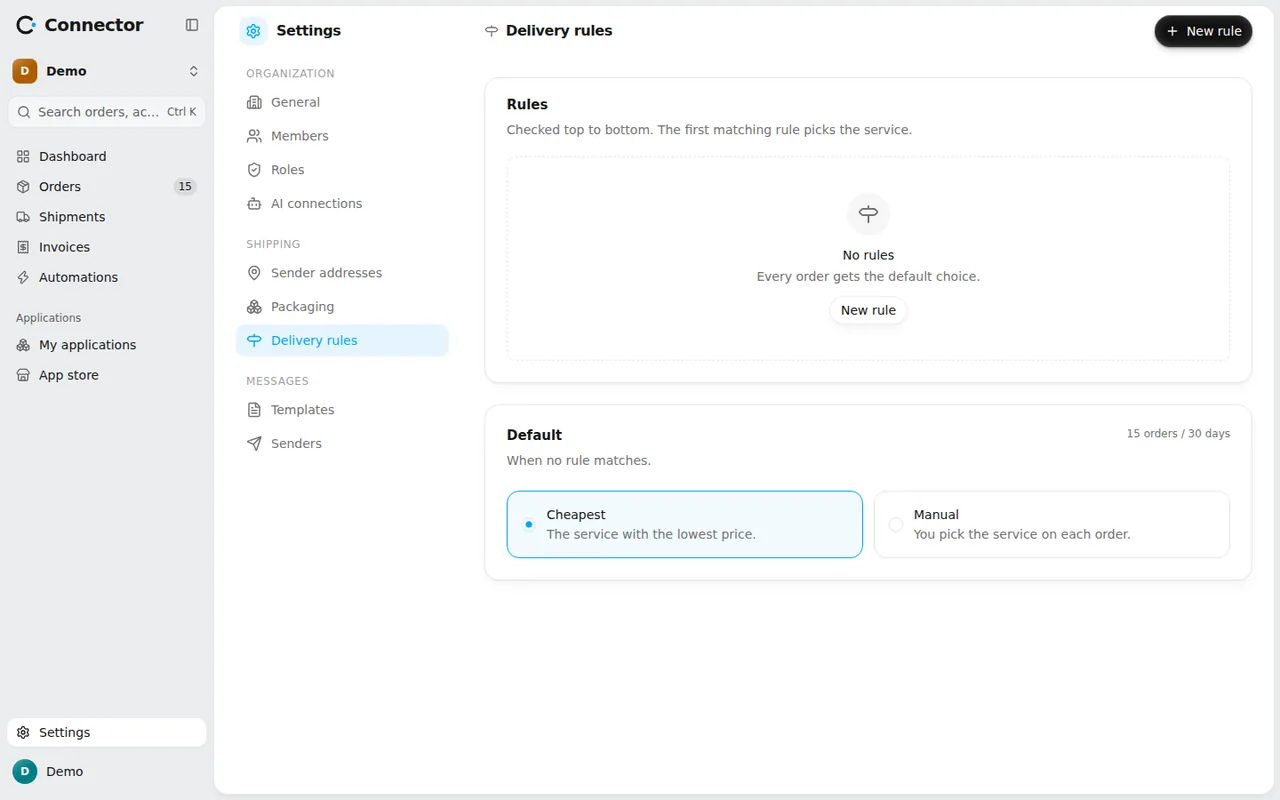
Open Settings → Shipping → Delivery rules. The page has two parts: the Rules list, checked top to bottom, and below it the Default choice. To pick a service, the app needs at least one courier connected from the App store.
How the service is chosen
For each order, the order of authority is this:
- A service you picked on the order stays, as long as it can still deliver the order.
- The rules, top to bottom. Paused ones are skipped, and the first rule whose conditions match picks the service.
- If no rule picks, the Default applies.
Before any rule, the app removes the services that cannot deliver the order: a locker order keeps only the locker services of its network. A rule can therefore never send a locker parcel to a door.
Default
The Default applies when no rule matches. It has two options:
- Cheapest: the service with the lowest price. This is the starting value, so everything works with no rules at all.
- Manual: you pick the service on each order.
For automatic labels do not leave the Default on Manual: an order with no service cannot get a label on its own.
A new rule
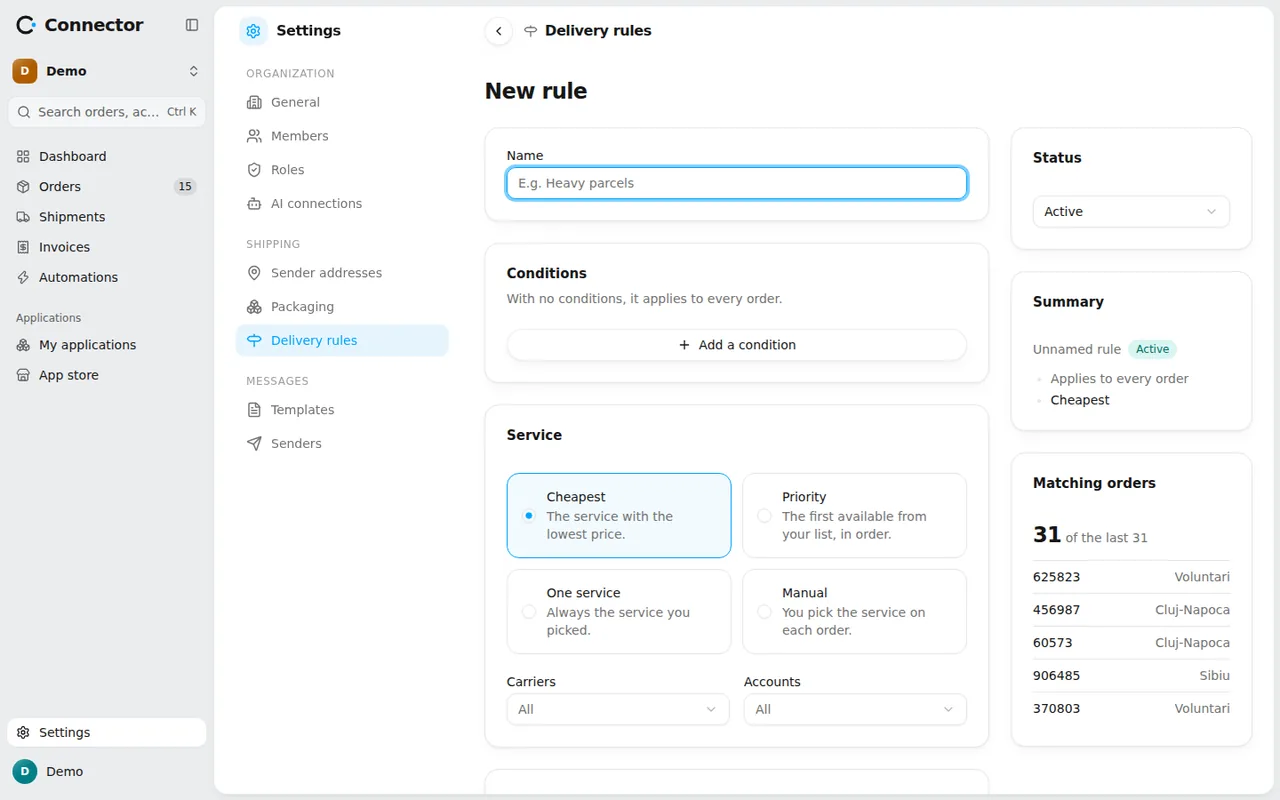
Press New rule. A rule has a Name (for example "Heavy parcels"), Conditions and a Service.
Conditions. With no conditions, the rule applies to every order. The available fields are:
- delivery: Delivery country, Delivery county, Delivery city, Postcode, Delivery type, Method chosen at checkout, Carrier the buyer asked for;
- parcel: Parcel weight;
- payment: Payment method, Payment status, Cash on delivery, Order total, Cash on delivery amount;
- order: Store, Number of items, Product (SKU).
Each field has its own comparisons: for numbers "is more than", "is less than", "is between" or "is equal to"; for lists "is" or "is not"; for text "contains" or "starts with". Cash on delivery is answered with yes or no. With Add a condition you combine them (all must match), and with Add a condition group (OR) you add an alternative.
Service. You pick a strategy:
- Cheapest: the service with the lowest price. You can limit the choice to certain Carriers or Accounts. A service with no price in the app (a contract rate) is never the cheapest.
- Priority: your list of services, in order; the first available one is taken. You add with Add service and reorder with Move up and Move down.
- One service: always the service you picked.
- Manual: the rule leaves the service for you to pick.
Under Advanced options there are two things. Exclude services removes the services you never want this rule's orders to get. If the service is not available decides what happens when the rule finds no service: Next rule (the order moves on to the rule below) or Stop here (the order stays without a service).
As you type, the Summary panel reads the rule back in words, and Matching orders shows how many of your recent orders would match, and which.
The order of rules
The first matching rule wins, so specific rules go above general ones. Move a rule with the Move the rule handle. Each row shows its state (Active or Paused) and how many orders it chose in the last 30 days. Pause takes a rule out of play for now, and Resume brings it back.
Two examples:
- "Heavy parcels": Parcel weight is more than a value you choose, with the One service strategy.
- "Cash on delivery in nearby counties": Cash on delivery yes and Delivery county is the counties you want, with the Cheapest strategy, limited to one carrier.
Orders that match none fall to the Default.
On the order
On the order's page you see who chose the service: "Chosen by the rule ...", "Chosen by default: the cheapest" or "Chosen by you". If you pick a service yourself, the app no longer changes it; Switch back to automatic hands it to the rules again. If the rules leave an order without a service, the page says why, for example that a rule stopped the choice.
When you create, edit, pause, move or delete a rule, or change the Default, the orders not yet processed are re-evaluated on their own. Once the label has been requested, nothing moves any more.
Check that it works
Open a recent order and read "Chosen by the rule ...". If a different rule shows than you expected, reorder the list or tighten the conditions and watch Matching orders until it shows what you want.