
Contents
If your invoices live in SmartBill and you sell through Shopify or WooCommerce, you know the routine: open the order, copy the customer, pick the series, add the products, get the VAT right, then press Issue. For every order, every time one comes in.
This guide shows how to make the invoice issue itself in SmartBill, with the data from the order, at the right moment: after the AWB for cash on delivery, when the payment is confirmed for orders paid online. You set it up once.
What you need
- A Shopify or WooCommerce store already connected to the app.
- A SmartBill account with API access and at least one invoice series.
- Three details from the account: the account e-mail, the API token and the tax id (CIF) of the company you invoice from.
Step 1: connect your SmartBill account
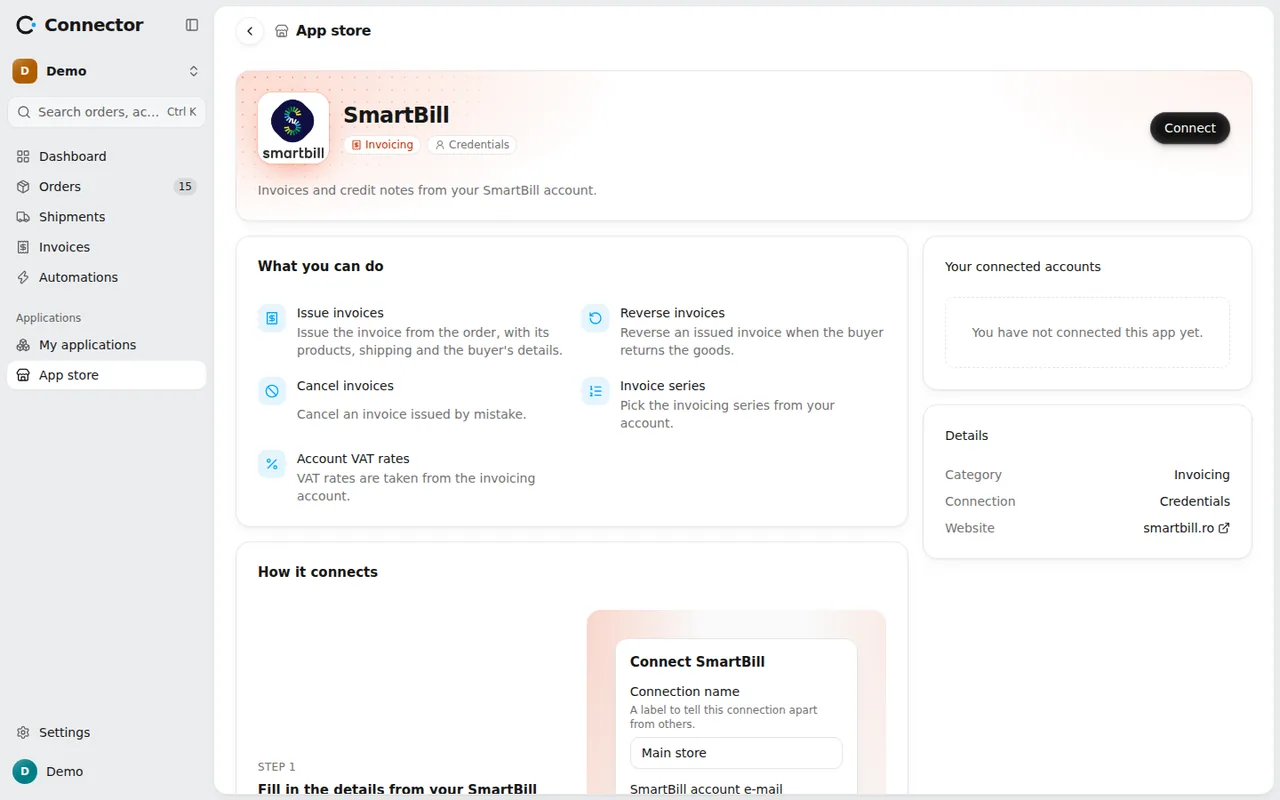
Open Applications → App store, the Invoicing section, and pick SmartBill. Fill in:
- SmartBill account e-mail;
- API token, from SmartBill, My account > Integrations > API;
- Company tax id (CIF), the company in the SmartBill account the invoices are issued for. One SmartBill account can hold several companies, so the CIF says which one you invoice from.
The app checks the details with SmartBill before it saves the connection. Once connected, the series and VAT rates of your account are fetched automatically and refreshed on their own.
Step 2: choose the account for the store
If you have a single invoicing account, the store uses it by itself. With several, pick one in the store's settings, Invoicing section (Invoicing account). Without a choice, orders stay blocked with the issue "There are several invoicing accounts and the store has none selected."
Step 3: invoice settings
From Applications → My applications, open Settings on the SmartBill card. There are two sections.
In Documents:
- Invoice series: pick it from the list of series in SmartBill. The series must exist in the account, otherwise SmartBill refuses the invoice.
- Unit of measure: type it exactly as in SmartBill, for example "pcs".
- Shipping line name: shipping appears on the invoice as a separate line.
- Days until due: empty means no due date.
- Invoice language for buyers abroad: English, German, French, Italian or Spanish. Empty means Romanian.
- E-mail the invoice to the buyer: it goes out from SmartBill, with the e-mail template set there.
- Mark as collected at issue: one option per payment method (card, bank transfer, cash and others). Cash on delivery is never marked as collected at issue.
In VAT you pick, for each rate in the store, the rate with the same name in SmartBill. A rate with a single option is chosen automatically. For orders with 0 VAT you choose separately: intra-community supply, export and no VAT (exempt). If a rate is not chosen, the order gets an issue instead of an invoice.
Step 4: turn on the automations
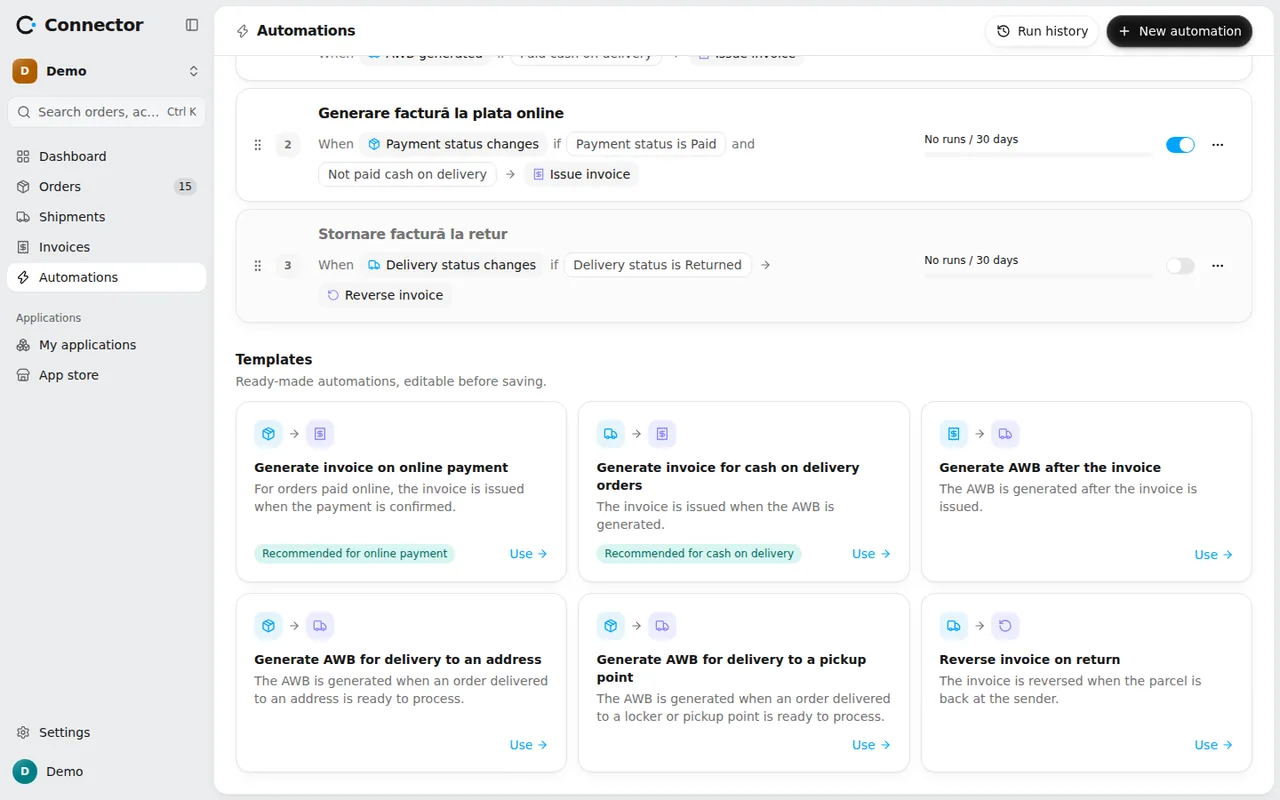
On the Automations page, in the Templates section, press Use on:
- Generate invoice for cash on delivery orders: the invoice is issued when the AWB is generated (the AWB generated event), only for cash on delivery orders.
- Generate invoice on online payment: the invoice is issued when the payment changes status, only for orders paid online.
- Generate AWB after the invoice, if you want it the other way round: the AWB is requested once the invoice is issued.
The invoice templates run the Issue invoice action, through the account chosen for the store. You can change the conditions before saving.
What blocks an invoice
An invoice does not go out if the order has issues. The app checks the order before sending anything to SmartBill. The usual causes:
- a Bucharest billing address without a sector (SmartBill needs "Sector 1" to "Sector 6" for e-Factura);
- a VAT rate not chosen in the account settings;
- a currency SmartBill does not accept: the list is fixed, at 31 currencies;
- more than 400 lines on one invoice;
- a missing series, or one that does not exist in SmartBill.
Fix the issue on the order page and the automation starts on its own.
What the integration does and does not do
- Individuals appear with the code 0000000000000, as SmartBill expects when there is no personal number. An order with a tax id on the billing address is invoiced to the company.
- Products are not saved to the SmartBill product list and stock is not moved.
- SmartBill has no unique key that prevents duplicates. If it does not answer while issuing, the invoice shows Unknown outcome and is not sent again on its own. Look for it in SmartBill: if it exists, leave it there; if it does not, press Set aside and the order can be invoiced again.
- The app does not send invoices to e-Factura. Sending is set up in your SmartBill account.
- Cancel invoice is no longer possible once the invoice has reached e-Factura. Then you reverse it. An invoice can be reversed only once, in full.
Check the result
Open the Invoices page: each invoice has its status (Being issued, Issued, Refused, Unknown outcome). From the order page, View invoice opens it.
If something does not work, Run history on the Automations page shows every run and why an order was skipped or refused.
For a parcel that comes back, the invoice can be reversed automatically. See the guide on reversing the invoice on return.