
Contents
In FGO, the VAT regime of an invoice is not set line by line but through the document type: regular invoice, reverse charge, exempt and so on. When you issue by hand, that is one more thing to remember for every order with 0 VAT.
This guide shows how to connect FGO to your Shopify or WooCommerce store so invoices issue themselves, with the right document type. You set it up once.
What you need
- A Shopify or WooCommerce store connected to the app.
- An FGO account on the PRO or PREMIUM plan, since API access is not included in the lower plans.
- An API user created in FGO, under Settings > Users, with its private key, and the company tax id (CIF).
Step 1: connect your FGO account
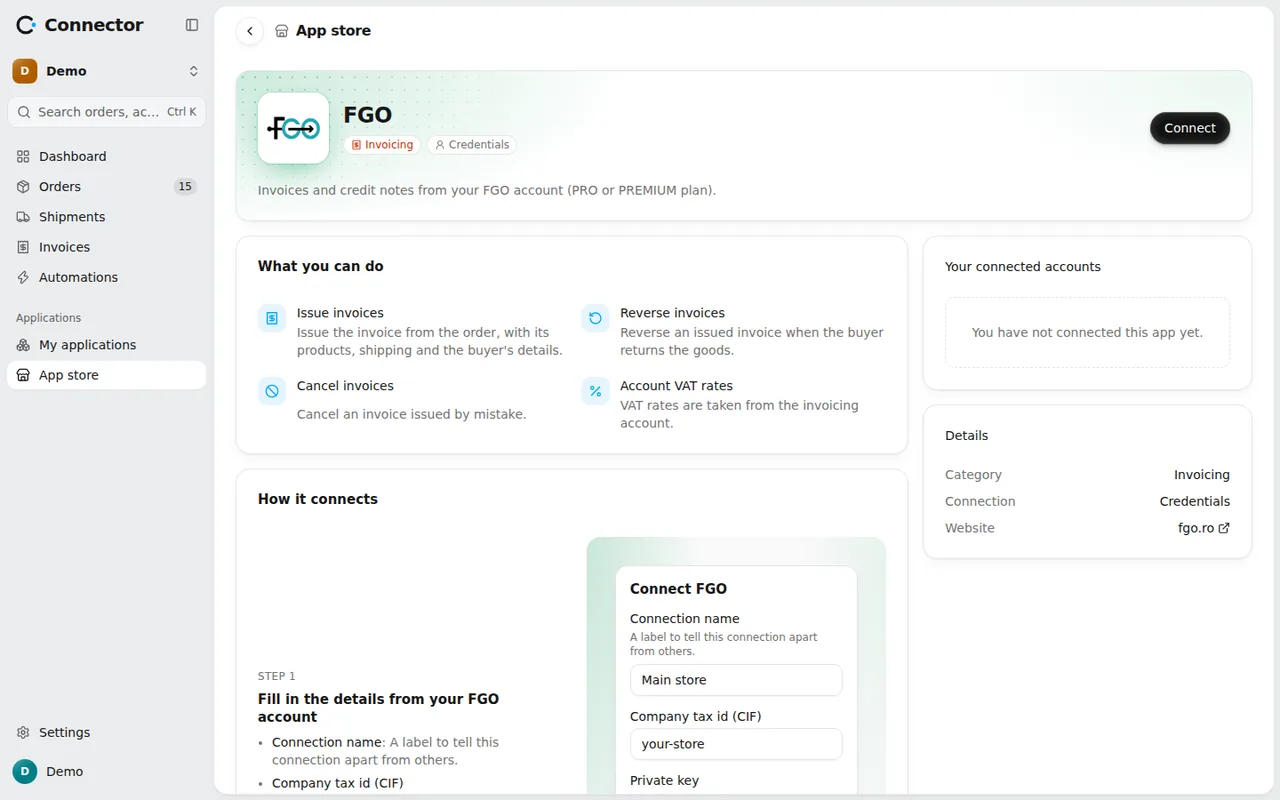
Open Applications → App store, the Invoicing section, and pick FGO. Fill in:
- Company tax id (CIF);
- Private key, from FGO, Settings > Users, when the API user is created;
- Test account, only if you use an account created on testuat.fgo.ro. For a real account leave it unticked.
Unlike other invoicing software, with FGO the app cannot check the details at the moment you connect. A wrong key only shows on the first invoice, which is not issued. So after connecting, issue a test invoice on a real order or on the test account.
Step 2: choose the account for the store
With a single invoicing account, the store uses it by itself. With several, pick one in the store's settings, Invoicing section, at Invoicing account.
Step 3: invoice settings
From Applications → My applications, press Settings on the FGO card.
In Documents:
- Invoice series: FGO offers no list of series through its API, so you type it, exactly as defined in FGO.
- Unit of measure: type it exactly as in FGO. FGO accepts at most 5 characters, and the app cuts anything beyond that.
- Shipping line name and Days until due (empty: no due date).
You will not find an invoice language for buyers abroad, e-mailing the invoice or marking it as collected here: at issue, FGO does not receive these from the integration.
In VAT you pick the invoice type for each 0 VAT case: intra-community, export and no VAT. The options are FGO's own types: exempt with deduction, reverse charge, non-taxable operations, services under art. 311, sales under art. 312 and services under art. 278. Orders with standard VAT go out on the regular invoice.
Step 4: turn on the automations
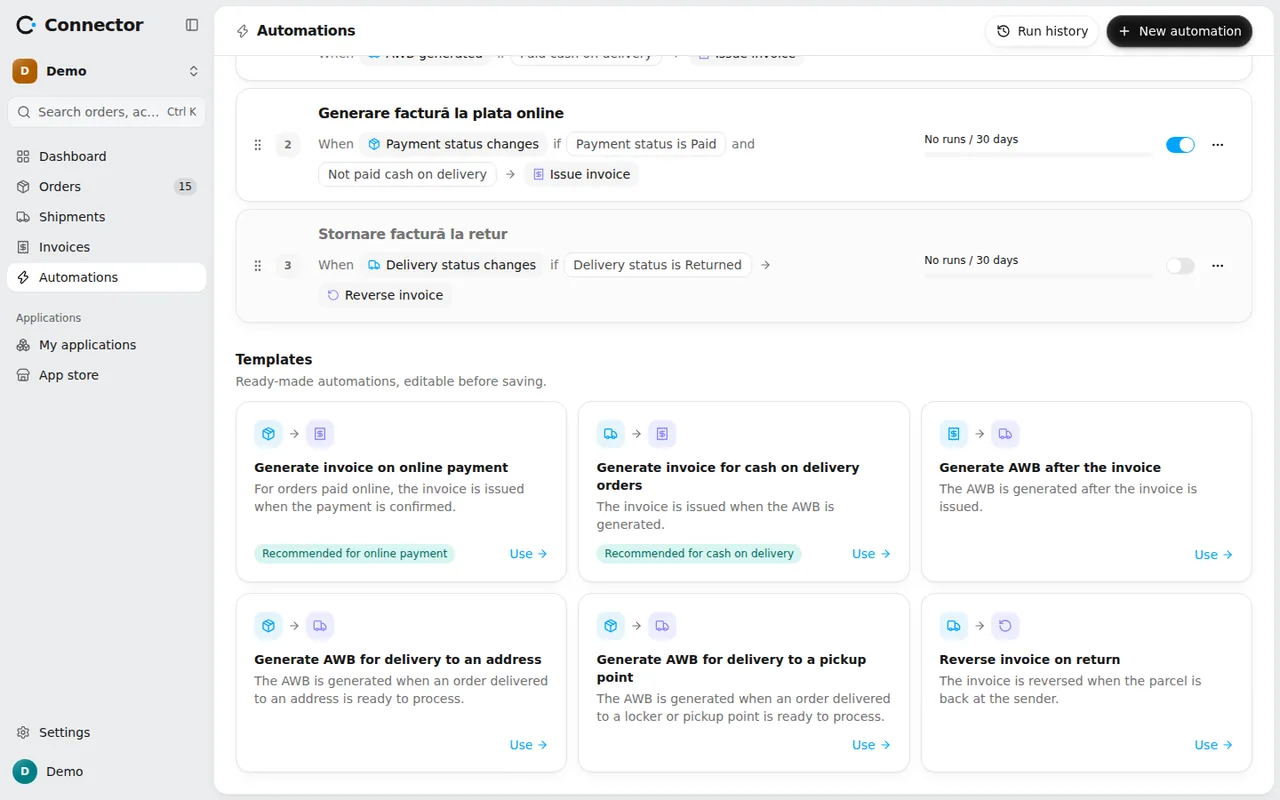
On the Automations page, in Templates, press Use on:
- Generate invoice for cash on delivery orders: the invoice is issued on the AWB generated event, for cash on delivery orders;
- Generate invoice on online payment: the invoice is issued when the payment status changes, for orders paid online;
- Generate AWB after the invoice, if you want the AWB to follow the invoice.
The action that runs is Issue invoice. You can change the conditions before saving.
What blocks an invoice
The app checks the order before sending anything to FGO. Besides a missing address or a missing sector for Bucharest, two rules are specific to FGO:
- One regime per invoice. FGO does not accept lines with VAT and exempt lines on the same invoice. An order that mixes them gets the issue "FGO does not accept VAT lines and VAT-exempt lines on the same invoice." and does not go out.
- Product text: a name over 1000 characters is cut in the name and kept whole in the description; over 4000 characters the invoice is refused before sending. A product code longer than 128 characters is left out, never cut.
Fix it on the order page and the automation starts on its own.
Pace and duplicates
FGO accepts one request per second, and the calls of one account must be made one at a time. The app sends one invoice every 2 seconds per account, so a large selection comes out in a few minutes, from the queue.
Every invoice goes out with a unique code, and FGO is asked to check for duplicates. If the answer is lost, the invoice stays Unknown outcome and Issue again resends it with the same code, so that two invoices do not appear.
What the integration does not do
- It does not send invoices to e-Factura and does not show the sending status. For your account's e-Factura behaviour, see the settings in FGO.
- It does not mark the invoice as collected and does not e-mail the customer.
- The credit note is a full one. For a repeated cancel or an unclear answer, check the invoice in FGO before cancelling again.
Check the result
On the Invoices page each invoice has its status: Being issued, Issued, Refused, Unknown outcome. View invoice, on the order page, opens it. Run history, on the Automations page, shows every run and why an order was skipped or refused.
For returned parcels, the invoice can be reversed automatically. See the guide on reversing the invoice on return.