

Contents
The parcel comes back to you, the money was never collected, but the invoice stays issued. If you do not reverse it, your books show a sale that did not happen. With a few returns a week it is easy to forget one, and the gap only shows when the month closes.
This guide shows how the invoice reverses itself when the courier marks the parcel as returned, and what you see and do when the reversal fails. You need a connected invoicing app (SmartBill, Oblio or FGO) and AWBs generated through the app.
What the automation does
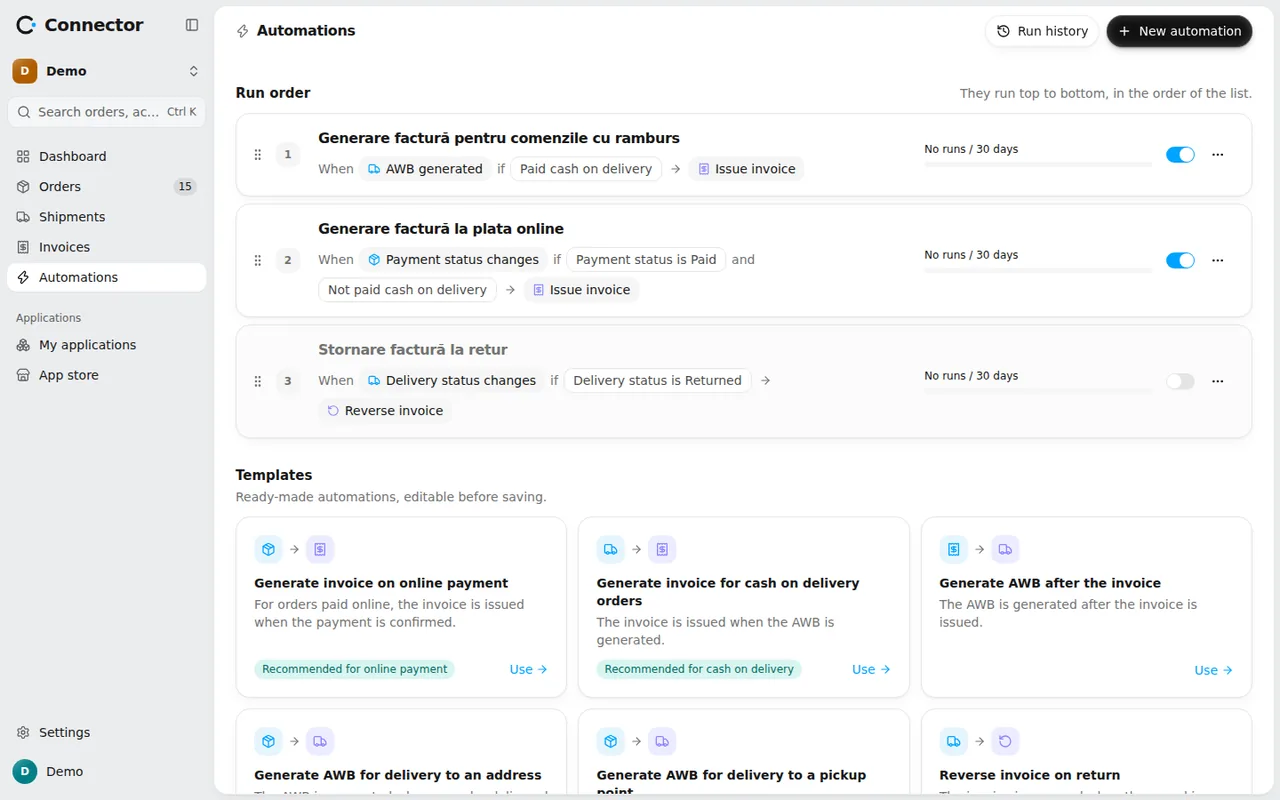
The template is called Reverse invoice on return and its description is "The invoice is reversed when the parcel is back at the sender". It has one event, one condition and one action:
- the event Delivery status changes, the moment the courier moves the AWB to another status;
- the condition: Delivery status is Returned;
- the action Reverse invoice, a full credit note for the order's invoice.
The status comes from the courier, through AWB tracking. The app does not decide on its own that a parcel came back, so the reversal starts only when the courier reports the return.
How to turn it on
On the Automations page, scroll to the Templates section and press Use on Reverse invoice on return. You can change the conditions before saving, for example to reverse only for one store. The automation then shows in the list of active automations.
If you prefer manual control, you can do the same from the order page with Reverse invoice, after a confirmation.
What happens on reversal
The app asks the invoicing software for a full credit note of the invoice. There is no partial reversal through the integration. You see the result in two places:
- on the Invoices page, where the reversal shows as a separate document of type Credit note, and the original invoice becomes Reversed;
- on the order page, at the invoice.
The credit note carries the date of the day it was actually sent to the invoicing software, not the date of the return. In SmartBill, an invoice can be reversed only once.
When nothing is reversed
A few situations are skipped, with the reason written in Run history:
- the order has no issued invoice: "The order has no issued invoice.";
- the reversal was already requested: "The credit note for invoice (its number) was already requested.";
- the invoice was issued after the step began, so it has nothing to do with the return.
In none of these cases is anything extra reversed, so no duplicates appear.
When the reversal fails
There are three different situations.
The invoicing software does not answer or is too busy. This is a passing error. The automation tries again on its own.
The invoicing software refuses the reversal. The run ends with the result Refused, and in Run history you find the reason, in the form "The credit note for invoice (its number) failed:" followed by the reason. On the order page the invoice stays issued, with the message "The credit note was not issued, invoice (its number) stands". Solve the reason in the invoicing software (for example an invoice already reversed or already sent to e-Factura), then press Reverse again. If you do not want the reversal, press Set credit note aside.
The outcome is unknown. If the answer never arrived, the app does not know whether the credit note was issued. The message says: "The outcome of the credit note for invoice (its number) is unknown: check it in the invoicing software." Until you check, the invoice cannot be cancelled or reversed again, so two credit notes cannot appear. If the credit note exists in the invoicing software, leave it there. If it does not, press Set credit note aside, and the invoice stays issued and can be reversed again.
Set credit note aside asks for a confirmation precisely because, if the credit note does exist in the invoicing software, trying again would produce a second one.
Cancel or reverse
Cancel invoice and a credit note are different things. Cancelling is possible only while the invoice has not been sent to e-Factura, and the order can then get a new invoice. For a returned parcel, once the invoice has gone out, the right way is the credit note.
What to check after the first returns
- On the first return, open Run history and find the run of the Reverse invoice on return automation.
- On the Invoices page, filter Type = Credit note and check the series, number and total.
- Open the invoicing software and confirm that the credit note shows there too.