



Contents
At ten orders a day you can keep everything in your head. At a hundred, the problem is no longer the work itself but knowing which order got stuck: which has a wrong address, which is waiting for an AWB, which has no invoice, which parcel is held at the courier.
This guide describes a routine for 100 orders a day or more, where most orders go through AWB, invoice and customer message on their own and you only deal with the exceptions. Everything is in the app, nothing needs an extra tool.
One list for all stores
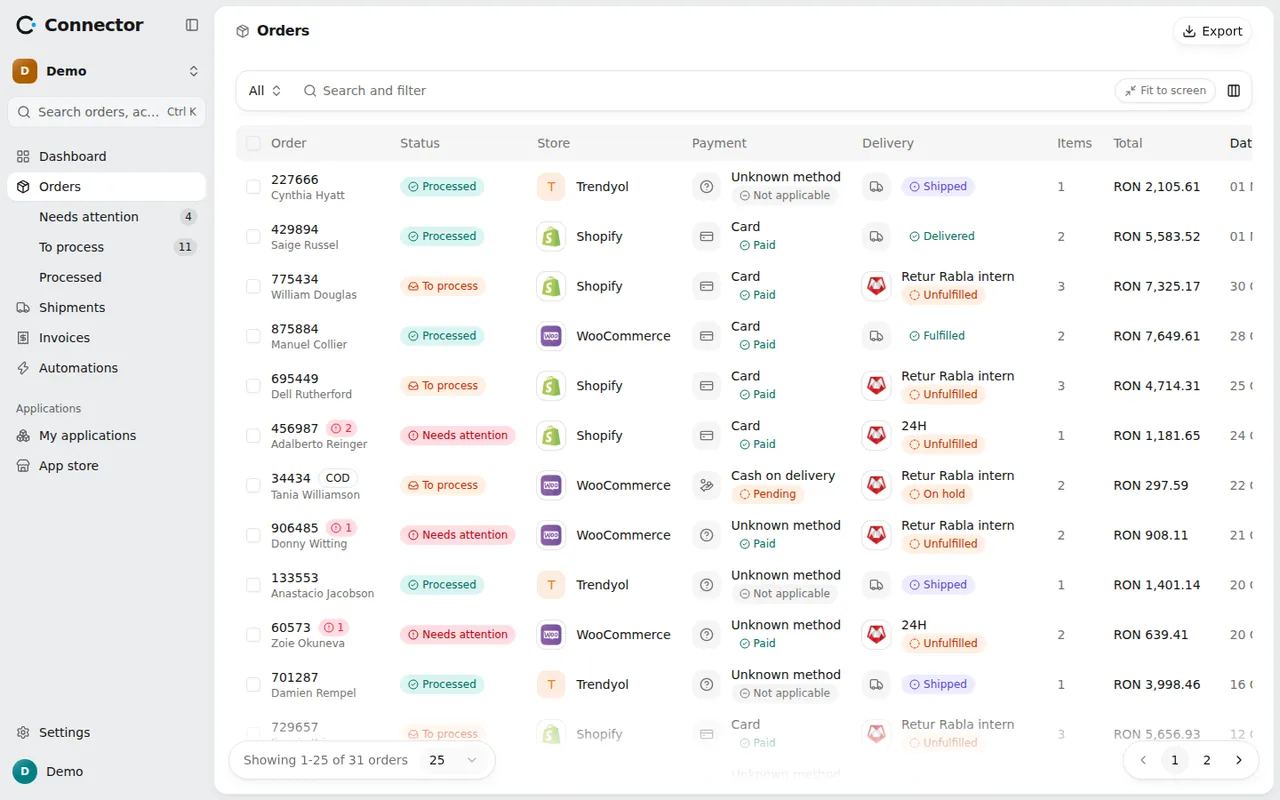
Orders from every connected store (Shopify, WooCommerce) land in the same list, Orders. The Store column says where each came from, and the Platform filter separates them when you need it.
Under Orders there are four pages, each a stage of the work:
- Needs attention: orders with issues, with a refused AWB or invoice, or with a parcel held at the courier. They stay here until the cause is gone.
- To process: orders that were checked and have no issues, waiting for an AWB, an invoice or both.
- Processed: orders that have an AWB, an invoice or both.
- All: everything, plus the views Not printed, Cancelled and Closed.
You do not set the stage of an order. The app works it out from the facts (the address is good, the AWB exists, the invoice is issued), so nothing is moved by hand.
Filters and saved views
The list can be filtered by Platform, Payment, Payment method, Delivery, Total, Placed on, Return and Printed, and it has search. Status is filtered only on the All page; on the others the stage already does it.
When you have a filter you use daily, for example cash on delivery orders from one store, save it: Save as a new view, with a name. Views are visible to the whole team and you find them under Views.
Order issues
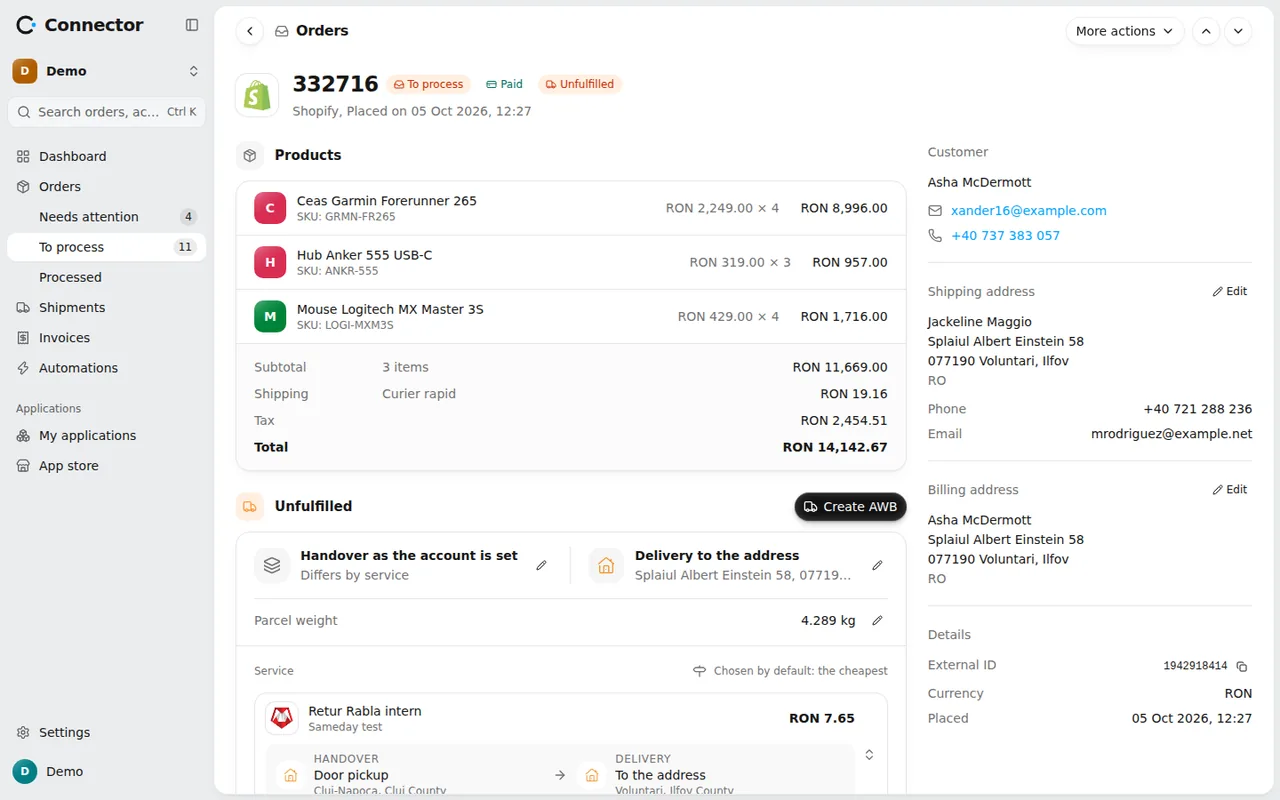
Every order is checked when it comes in: delivery address, locality, phone, billing details. What is missing or wrong shows as an issue on the order and blocks it: Blocks shipping, Blocks invoicing or both. A Warning does not block.
Open the order, fix the field (for example Correct the shipping address) and the issue goes away on its own. Your edit stays marked Edited and is not overwritten by the next sync with the store. Once the AWB or the invoice is issued, those fields can no longer change until you cancel the AWB or reverse the invoice.
Start the morning with Needs attention. If it is empty, nothing is blocked.
Automations do the rest
At high volume, buttons are for exceptions. The routine is done by the automations in Automations, through Templates and Use:
- Generate AWB for delivery to an address and Generate AWB for delivery to a pickup point start on Order ready to process.
- Generate invoice for cash on delivery orders issues the invoice when the AWB is generated, and Generate invoice on online payment issues it when the payment is confirmed.
- A new automation with the event AWB generated and the action Send email or Send SMS tells the customer (see the guide on delivery notifications).
- Reverse invoice on return reverses the invoice when the parcel comes back.
Automations run top to bottom, in the order of the list. Under Order with issues you pick Wait (it runs once the issue is resolved) or Do not run. With Wait, an order you corrected moves on by itself.
Bulk actions
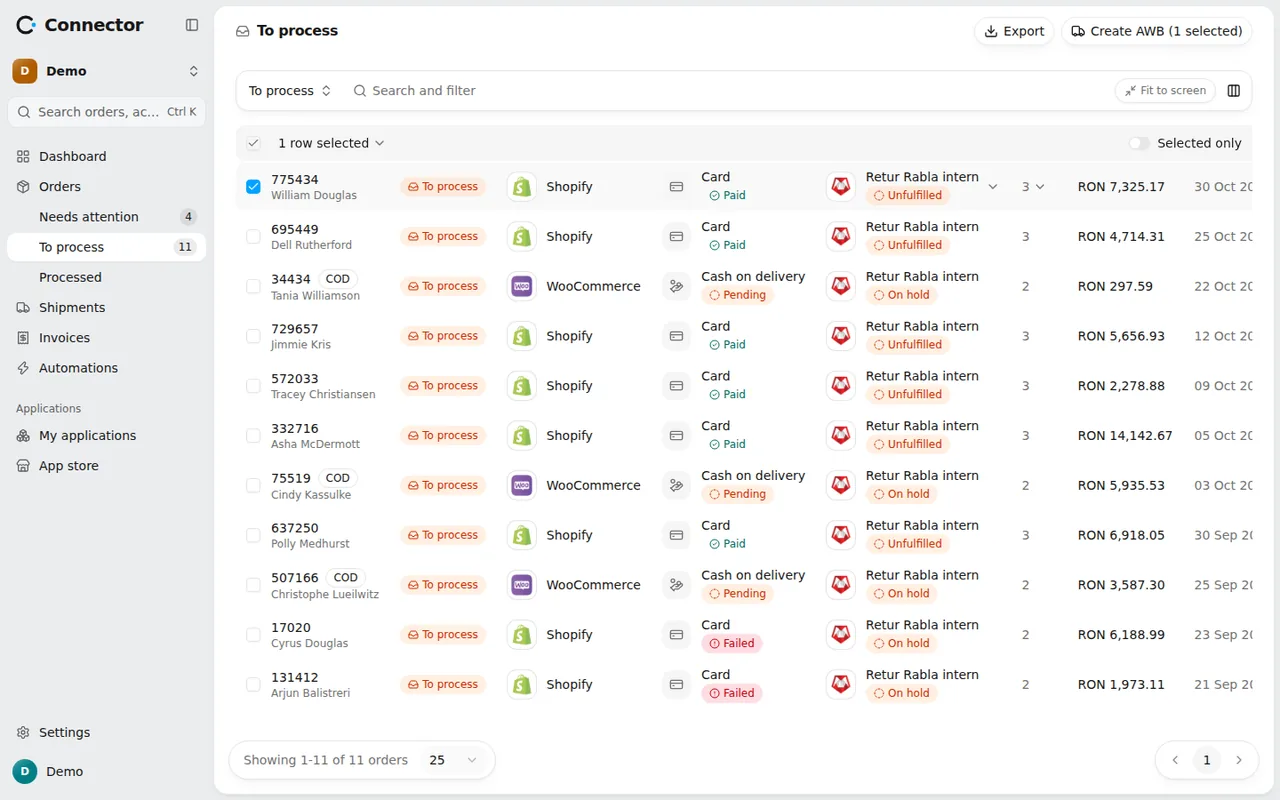
For what is not automatic, the stage pages have buttons in the top bar. A button works on the ticked orders or, if nothing is ticked, on the whole list shown, after a confirmation.
- On To process: Create AWB and Issue invoice, once a courier and an invoicing app are connected.
- On Processed: Print, which joins the documents into a single PDF (Print AWB and Print invoice). Orders whose documents were fetched are marked Printed, and the Not printed view shows what is left.
- On All, for ticked orders: Send message, to their customers, with an email or SMS template.
- Export: the current page, all orders, the ticked ones or the orders from the last days, in Excel or CSV.
A bulk action applies to at most 500 orders at a time; if the list is longer, you run it again. Orders that cannot be processed are shown with the reason and do not stop the rest.
What to watch
Shipments shows parcels in queues: To pick up, On the way, Problems, Delivered and Returns. A parcel held at the courier or reported lost brings the order back into Needs attention.
In Automations, Run history shows every run: for which order, the result (Done, Skipped, Waiting, Refused, Interrupted) and the reason. You can filter by result or automation and search by order, AWB or invoice.
On each order's page, the Messages section shows what the customer received and whether it went out.
A daily routine
- Open Needs attention and fix the issues or the held parcels.
- Go to To process: if anything is left without an AWB or invoice, use the bulk buttons.
- On Processed, pick the Not printed view and print the labels.
- Look into Run history now and then for refused runs.